Navigating the modern PC gaming landscape often means juggling multiple launchers a common challenge for many gamers who cherish their digital libraries. This comprehensive guide simplifies the process of how to launch Ubisoft games through Steam allowing you to centralize your gaming experience. We delve into the benefits troubleshooting tips and best practices for busy US gamers averaging over 10 hours a week dedicated to their passion. Discover how to streamline your access to titles like Assassin's Creed and Far Cry directly from your familiar Steam interface ensuring more time for play and less for setup. This resource is tailored for those who balance gaming with jobs and families seeking efficient solutions for managing their vast game collections and optimizing their limited gaming time without sacrificing fun or performance. Uncover the secrets to a unified gaming library making your PC gaming life simpler and more enjoyable.
How can I add my existing Ubisoft PC games to my Steam library?
To add an existing Ubisoft PC game (not purchased on Steam) to your Steam library, open Steam, click 'ADD A GAME' in the bottom-left, then 'Add a Non-Steam Game'. Browse to the game's executable file (e.g., your game.exe in the Ubisoft Connect games folder), select it, and click 'ADD SELECTED PROGRAMS'. This creates a shortcut for convenience.
Why do Ubisoft games I bought on Steam still require Ubisoft Connect to launch?
Ubisoft games purchased on Steam still require Ubisoft Connect because Ubisoft Connect is the primary platform and DRM for Ubisoft titles. Steam acts as a storefront and an initial launcher, but then hands off the game to Ubisoft Connect for authentication, updates, and the actual game launch, ensuring all Ubisoft-specific features function correctly.
What are the main advantages of launching my Ubisoft games through Steam?
The main advantages include centralizing your game library, utilizing the Steam Overlay for in-game chat and web browsing, accessing Steam Input for advanced controller customization, and allowing your Steam friends to see what game you are playing. It streamlines your gaming experience by bringing multiple launchers into one familiar interface.
Are there common issues when trying to integrate Ubisoft games with Steam?
Yes, common issues include account linking errors where Steam and Ubisoft Connect fail to authenticate, games not being recognized despite ownership, and general launch failures. These often stem from mismatched accounts, corrupt files, or conflicts with overlays, requiring basic troubleshooting steps like verifying files or relinking accounts.
What steps should I take if a Ubisoft game won't launch from Steam?
If a Ubisoft game won't launch from Steam, first verify the integrity of game files through Steam. Then, ensure Ubisoft Connect is running and you're logged into the correct account. Try running both Steam and Ubisoft Connect as an administrator, update your graphics drivers, and temporarily disable both Steam and Ubisoft Connect overlays to identify potential conflicts.
Can I buy DLC for my Ubisoft game on Steam if I bought the base game elsewhere?
Generally, it is not recommended to buy DLC for a Ubisoft game on Steam if you purchased the base game from another platform like Ubisoft Connect. DLC is usually tied to the specific storefront where the base game was acquired. Mixing purchases can lead to content not being recognized or activated, causing compatibility issues.
How can I unlink my Ubisoft account from Steam if I no longer wish them to be connected?
To unlink your Ubisoft account from Steam, open the Ubisoft Connect client, navigate to your 'Account Information' or 'Account Management' settings. Look for a 'Linked Accounts' section, find Steam in the list, and click the 'Unlink' or 'Remove' option. Confirm the action to sever the connection between the two accounts.
For many of us navigating the vast world of PC gaming means hopping between a multitude of launchers. You have your Steam library your Epic Games titles your Xbox Game Pass collection and yes your Ubisoft games nestled within Ubisoft Connect. It is a digital maze that often steals precious minutes a significant pain point for the average US gamer who dedicates over 10 hours a week to their passion often balancing it with a job and family commitments. We understand the desire for a single convenient hub where all your beloved titles reside making it easier to jump into a quick session of skill-building or unwind with friends in a social game.
This guide is your roadmap to achieving that streamlined experience specifically focusing on how to launch Ubisoft games through Steam. We are not just talking about theory here. We are diving into practical step-by-step solutions common challenges and optimization tips so you can spend less time fumbling with launchers and more time immersing yourself in your favorite Ubisoft worlds. From the latest AAA adventures to classic favorites a unified library makes gaming more accessible more enjoyable and ultimately more respectful of your valuable time. Let us transform your gaming setup into a cohesive efficient entertainment powerhouse.
How Do I Add Ubisoft Games to My Steam Library for Easier Launch?
Adding Ubisoft games to your Steam library is generally straightforward especially if you purchased them directly on Steam. For games bought outside of Steam such as directly from Ubisoft Connect or through other retailers you can still add them as 'Non-Steam Games'. This feature primarily offers a convenient shortcut in your Steam library allowing you to launch them directly from there. It does not however fully integrate them as if they were purchased on Steam nor does it bypass the need for Ubisoft Connect.
Here are the steps:
- Open your Steam client.
- In the bottom-left corner click on 'ADD A GAME'.
- Select 'Add a Non-Steam Game'.
- A new window will appear showing a list of programs on your computer. Scroll through and check the box next to your desired Ubisoft game's executable file (e.g. 'ACValhalla.exe' or 'FarCry6.exe'). If you cannot find it click 'BROWSE...' and navigate to the game's installation directory.
- Once selected click 'ADD SELECTED PROGRAMS'.
Your Ubisoft game will now appear in your Steam library listed under 'Games'. Double-clicking it will attempt to launch the game which will in turn initiate Ubisoft Connect if it is not already running and then launch the game itself.
Why Do Ubisoft Games Purchased on Steam Still Launch Ubisoft Connect?
Even when you purchase a Ubisoft game directly through Steam it acts as a storefront and a DRM wrapper but Ubisoft Connect remains the primary platform for running Ubisoft titles. Think of Steam as the gatekeeper and Ubisoft Connect as the inner sanctum. This dual-launcher requirement is a common practice for publishers with their own storefronts like EA with Origin/EA App or Activision Blizzard with Battle.net. Ubisoft Connect handles game updates cloud saves social features and even the actual game launch process.
This means that when you click 'Play' on a Ubisoft game in Steam the Steam client first verifies your purchase and then sends a command to launch Ubisoft Connect. Ubisoft Connect then takes over verifies your ownership again and starts the game. While it adds an extra step it ensures you have access to all Ubisoft-specific features and that the publisher maintains control over their ecosystem. US gamers often appreciate cross-platform features and while this is not true cross-platform in a gameplay sense it is a publisher's way of extending their platform reach.
What Are the Benefits of Launching Ubisoft Games Via Steam?
Despite the extra launcher step there are several practical benefits to centralizing your Ubisoft games within your Steam library:
- Unified Library: All your PC games are in one place making it easier to browse and select what to play especially for busy individuals with limited gaming time.
- Steam Overlay: Gain access to the Steam Overlay featuring friend chat web browser screenshots and guides without needing to alt-tab out of your game. This is invaluable for coordinating with friends in social games or quickly looking up a quest detail.
- Steam Input: Utilize Steam's powerful controller configuration tools for non-Steam games allowing for custom keybinds and controller mapping across different titles.
- Friend Management: While in-game Ubisoft Connect friends are separate Steam friends can see what game you are playing and potentially join you if the game supports it and you have both linked accounts. This fosters social play a huge trend among 87% of US gamers who regularly engage with gaming.
- Simplified Downloads and Updates (for Steam purchases): If you bought the game on Steam updates are managed through Steam which can be convenient. For non-Steam games updates are handled by Ubisoft Connect.
- Game Time Tracking: Steam will track your playtime for both Steam-purchased and manually added non-Steam games giving you a consolidated view of your gaming habits.
Are There Any Common Issues When Linking Ubisoft Games to Steam?
Yes linking Ubisoft games to Steam especially those not originally purchased on Steam can sometimes present a few hurdles. The most frequent issues revolve around authentication game ownership recognition and launch failures. Gamers balancing multiple responsibilities want a smooth experience and these glitches can be frustrating.
Common issues include:
- Account Linking Errors: Sometimes Steam and Ubisoft Connect accounts fail to link properly leading to repeated login prompts.
- Game Not Recognized: You might launch a game from Steam only for Ubisoft Connect to prompt you to buy it again even if you own it. This typically indicates a mismatch in accounts or a corrupt link.
- Launch Failures: The game simply fails to start or crashes immediately after launching from Steam. This can be due to conflicting background processes or outdated drivers.
- DLC Mismatches: Purchasing DLC for a Steam-bought Ubisoft game from another storefront (or vice versa) can lead to content not being recognized.
Understanding these potential roadblocks is the first step toward effective troubleshooting.
How Can I Troubleshoot If My Ubisoft Game Won't Launch From Steam?
When a Ubisoft game refuses to launch from Steam it can feel like a waste of your precious gaming time. Here are practical steps to get you back into the action a comprehensive checklist for busy gamers:
- Verify Game Files (Steam Purchases): Right-click the game in Steam -> Properties -> Installed Files -> Verify integrity of game files. This can fix corrupt installation files.
- Launch Ubisoft Connect First: Try launching Ubisoft Connect directly before attempting to launch the game through Steam. Ensure you are logged into the correct Ubisoft account that owns the game.
- Run as Administrator: Right-click the Steam shortcut and the Ubisoft Connect shortcut and select 'Run as administrator'. This can resolve permission issues.
- Check Account Link: Ensure your Steam account is correctly linked to your Ubisoft account. Sometimes this link can break. You can check this in Ubisoft Connect's settings or when prompted during a game launch.
- Update Drivers: Ensure your graphics drivers (NVIDIA AMD Intel) and Windows operating system are up to date. Outdated drivers are a frequent culprit for launch issues and performance problems.
- Disable Overlays: Temporarily disable both the Steam Overlay and the Ubisoft Connect Overlay to see if they are causing conflicts. You can do this in Steam (Game Properties) and Ubisoft Connect (Settings).
- Firewall and Antivirus: Ensure your firewall and antivirus software are not blocking Steam Ubisoft Connect or the game's executable. Add them to your exception lists.
- Reinstall Ubisoft Connect: A clean reinstall of Ubisoft Connect can resolve deep-seated issues. Make sure to back up any local save files if necessary (though most are cloud-saved).
- Contact Support: If all else fails reach out to Ubisoft Support with detailed information about your issue and troubleshooting steps taken.
Can I Launch a Ubisoft Game Purchased Directly from Ubisoft Connect Through Steam?
Yes you absolutely can launch a Ubisoft game purchased directly from Ubisoft Connect through Steam. However it is important to understand the nuance. You will be using Steam's 'Add a Non-Steam Game' feature. This essentially creates a shortcut within your Steam library. When you click this shortcut Steam will attempt to launch the game's executable. Because it is a Ubisoft title Ubisoft Connect will still need to launch and authenticate the game. The benefit is purely organizational providing a single interface for all your games.
You will not gain Steam achievements or full Steam community integration as you would with a game purchased directly from Steam but you will still get the Steam Overlay and the convenience of having it listed alongside your other Steam titles. For gamers who prioritize a centralized library this is a fantastic workaround.
Does Launching Ubisoft Games Through Steam Improve Game Performance or Social Features?
In most cases launching a Ubisoft game through Steam does not inherently improve core game performance. The game engine and its interaction with your hardware remain the same regardless of which launcher initiates it. Performance is primarily dictated by your PC's specifications game settings and driver optimization. Adding the Steam layer does not magically boost your frame rates.
Regarding social features the integration is partial but beneficial. While Ubisoft Connect handles its own friend list and in-game invites the Steam Overlay allows you to easily chat with your Steam friends without leaving the game. This is particularly useful for coordinating with a wider group of friends some of whom might not be active on Ubisoft Connect. For multiplayer games bought on Steam your Steam friends can see you playing and potentially join through Steam's features adding a layer of convenience to social gaming a critical component for many US gamers who enjoy community and cooperative play.
What If I Buy DLC Through Steam for a Ubisoft Connect Game I Own Outside of Steam?
This situation can be tricky and is generally not recommended. If you own a Ubisoft game directly through Ubisoft Connect (or another platform) and then purchase DLC for that game through Steam there is a high probability that the DLC will not be recognized. Game platforms are designed to recognize content purchased within their own ecosystem.
For the DLC to be recognized you typically need to own the base game on the same platform where you purchased the DLC. For instance if you bought Assassin's Creed Valhalla on Ubisoft Connect you should buy its expansions through Ubisoft Connect. If you bought Valhalla on Steam you should buy its expansions through Steam. Mixing and matching can lead to activation issues missing content or frustrating troubleshooting sessions. Always ensure your base game and all its associated content are purchased and owned on the same digital storefront to avoid compatibility headaches and save your valuable gaming time.
How Do I Unlink My Ubisoft Account From Steam If Needed?
Unlinking your Ubisoft account from Steam is a straightforward process should you ever need to do so. This might be necessary for troubleshooting a persistent linking issue moving accounts or simply reorganizing your digital presence.
Here is how:
- Log into Ubisoft Connect: Open the Ubisoft Connect client and log into the account you wish to unlink.
- Access Account Management: Click on your profile icon in the top right corner and select 'Account Information' or 'Account Management'.
- Navigate to Linked Accounts: Look for a section or tab usually labeled 'Account Linking' 'Linked Accounts' or 'Other Accounts'.
- Find Steam: Locate 'Steam' in the list of linked platforms.
- Unlink: Click the 'Unlink' or 'Remove' button next to Steam. You may need to confirm this action.
Keep in mind that unlinking will mean your Ubisoft games will no longer launch through Steam and you will not have access to Steam-specific features for those titles. You can always relink your accounts later if you change your mind.
Conclusion
Bringing your Ubisoft games into the Steam ecosystem offers a valuable layer of convenience and control for the modern gamer especially those balancing busy lives with their passion for interactive entertainment. While Ubisoft Connect remains an essential component for these titles integrating them into Steam streamlines your library provides access to the powerful Steam Overlay and enhances social connectivity. We have walked through everything from adding games and understanding the dual-launcher system to comprehensive troubleshooting and best practices for DLC. By following these steps you can reclaim precious gaming minutes and focus on what truly matters: exploring rich worlds building skills and connecting with friends. What is your biggest gaming challenge when it comes to managing your digital library? Comment below!
FAQ Section
Is it necessary to link Ubisoft and Steam accounts?
No it is not strictly necessary to link your Ubisoft and Steam accounts. You can launch Ubisoft games directly from the Ubisoft Connect launcher. However linking offers the convenience of centralizing your game library within Steam and utilizing its overlay features.
Can I use Steam overlay with Ubisoft games?
Yes you can use the Steam Overlay with Ubisoft games whether purchased on Steam or added as a non-Steam game. When you launch the game through Steam the overlay becomes active allowing you to chat with friends take screenshots and access the web browser.
What if my game is not appearing in Steam after linking?
If your game is not appearing check if you correctly added it as a 'Non-Steam Game' or if it was a Steam purchase, ensure it appears in your Steam library filter. For Steam purchases, try verifying game files. For non-Steam games, verify the executable path is correct.
Do Steam achievements work with Ubisoft games?
For Ubisoft games purchased directly on Steam, yes, Steam achievements typically work in parallel with Ubisoft Connect achievements. However, for Ubisoft games added as 'Non-Steam Games,' Steam achievements are generally not available as they are tied to the game's official Steam integration.
Is there a performance hit when launching Ubisoft games through Steam?
Generally, there is no noticeable performance hit when launching Ubisoft games through Steam. The additional overhead from Steam is minimal as Ubisoft Connect is still the primary application managing the game's launch. Performance is mostly determined by your system's hardware and game settings.
Centralized gaming library Streamlined game access Troubleshooting common issues Seamless Ubisoft Connect integration Performance optimization tips for Steam users Unifying game platforms
35

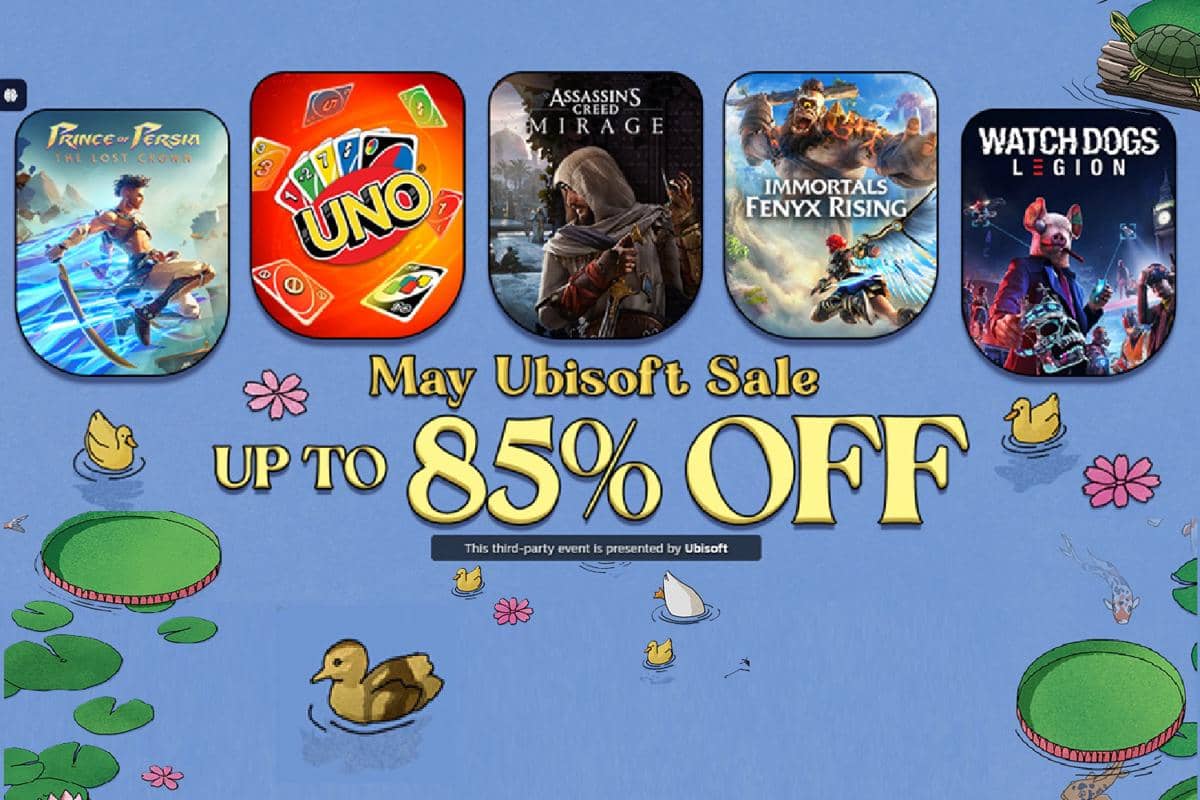
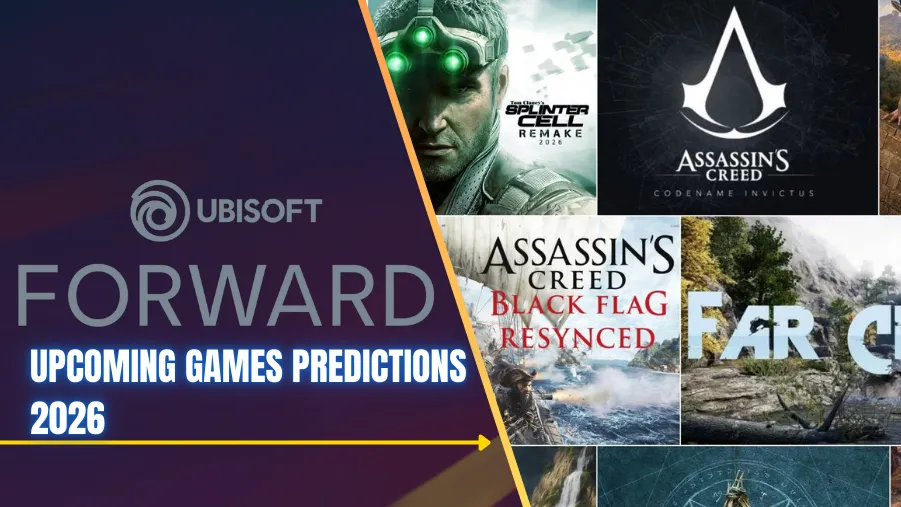
Steam May Ubisoft Sale 2026 Up To 85 Off Top Games Steam May Ubisoft Sale 2026 Best Deals . Ubisoft Planning To Release Splinter Cell Remake AC Shadows Black 2023 06 Multi Brands . Ultimate Ubisoft Games That Improve Post Launch Guide March 2026 Ubisoft Games That Improve Post Launch Guide . Diskon Game Di Steam May Ubisoft Sale 2026 IDN Times Magen C46114fd 121d 4b39 8dba . Ubisoft Forward 2026 Upcoming Games Predictions All Expected Reveals Ubisoft Forward 2026 Upcoming Games


5 Ubisoft Games To Play In 2026 GamesNight 5 Ubisoft Games To Play In 2026 1024x576 . How To Fix Watch Dogs 2 Not Launching Via Ubisoft Connect In 2026 5 How To Fix Watch Dogs 2 Not Launching Via Ubisoft Connect In 2026 2 Optimized . Ubisoft Connect Setup 2026 Install Configure In 12 Steps Ubisoft Connect Setup 2026 1.webp. How To Fix Watch Dogs 2 Not Launching Via Ubisoft Connect In 2026 5 How To Fix Watch Dogs 2 Not Launching Via Ubisoft Connect In 2026 3 1024x576 Optimized . Yes Black Flag Resynced On Steam Requires Ubisoft Connect Does Assassin S Creed Black Flag Resynced Need Ubisoft Conne 5100168282
This 17 Open World Star Wars Game Is The Steam Summer Sale S Easiest Call Star Wars Outlaws Kay And Nyx Walking Ship . This 17 Open World Star Wars Game Is The Steam Summer Sale S Easiest Call Star Wars Outlaws 7 . This 17 Open World Star Wars Game Is The Steam Summer Sale S Easiest Call Star Wars Outlaws Kay Shooting A Droid . Ubisoft S 1 3 Billion Deal With Tencent To Close Soon New Creative 108988 24 Ubisofts 1 3 Billion Deal With Tencent To Close Soon New Creative Houses Plan Coming In 2026 . Tencent Isn T Buying Ubisoft Ubisoft Isn T Collapsing And Assassin S 2024 01 16 Image 11



Unknown Excitement Spreads Instantly As The Hits Feeds Media. Rumor Game Besar Ubisoft Tidak Akan Muncul Sampai Summer 2026 Rumor Game Besar Ubisoft Tampaknya Tidak Akan Muncul Sampai Summer 2026 1 1. Ubisoft Employee Fired For Criticizing The Company In 2026 Ubisoft Games 409946840 . Ubisoft S Exciting 2026 Game Lineup Revealed TikTok Img. Ubisoft Announces Major Reset Cancelling Titles Let S Data Science Ubisoft 728x409
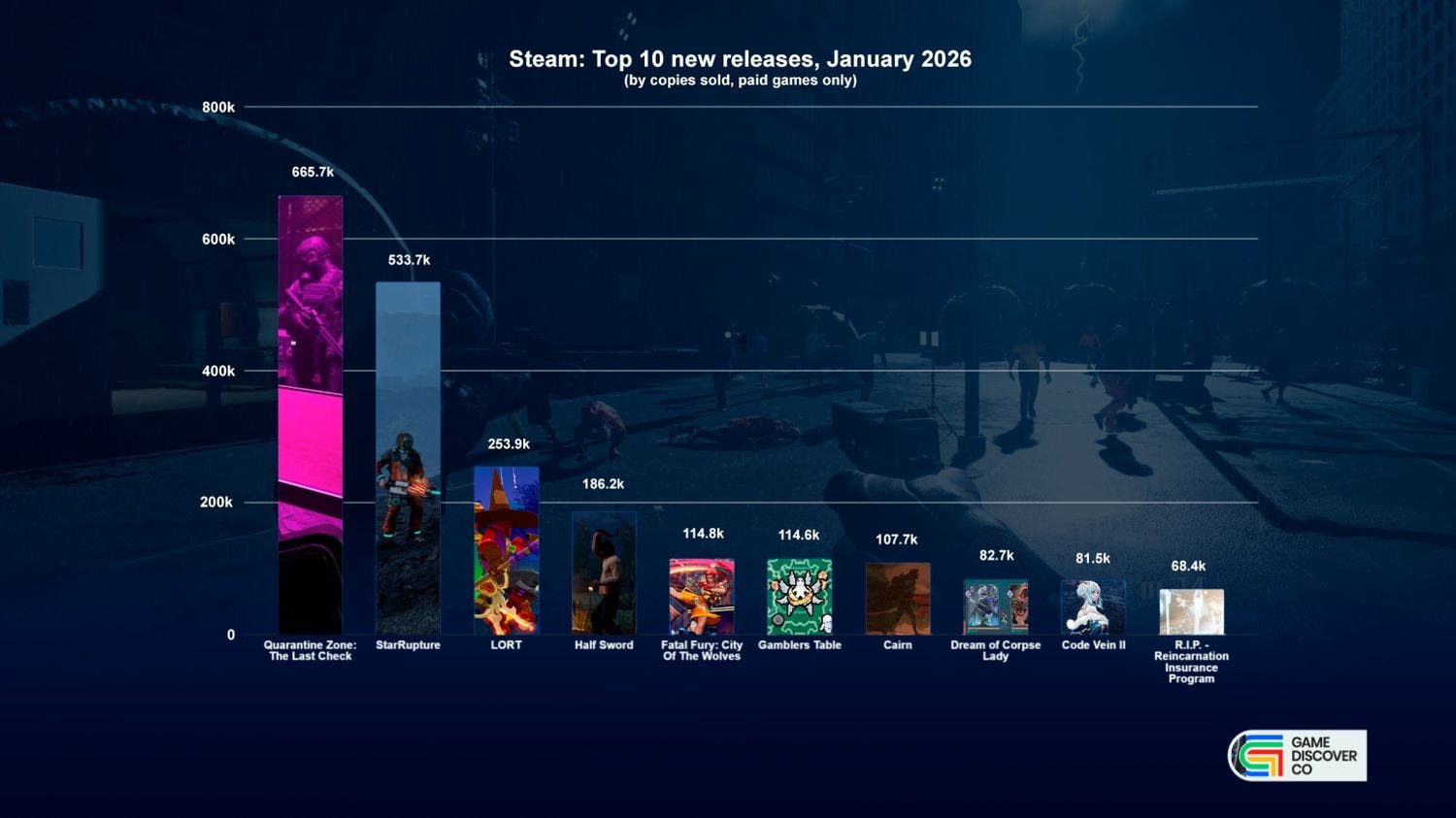

Ubisoft Is Bringing Two More Games Onto Steam Gameranx Ubisoft 2 . Opinion Business Game Dev Ubisoft Says 80 Of Its Current Ubisoft . Neuf Gros Jeux Ubisoft En 2026 2027 Retour En Gr Ce Ou Mirage De Ubisoft . January 2026 S Top Selling New Steam Games Revealed 08418405 04a2 47eb B48b 1500x843 . Top 10 Most Anticipated Games Of 2026 What To Watch Out For TVN GAMES IN 2026
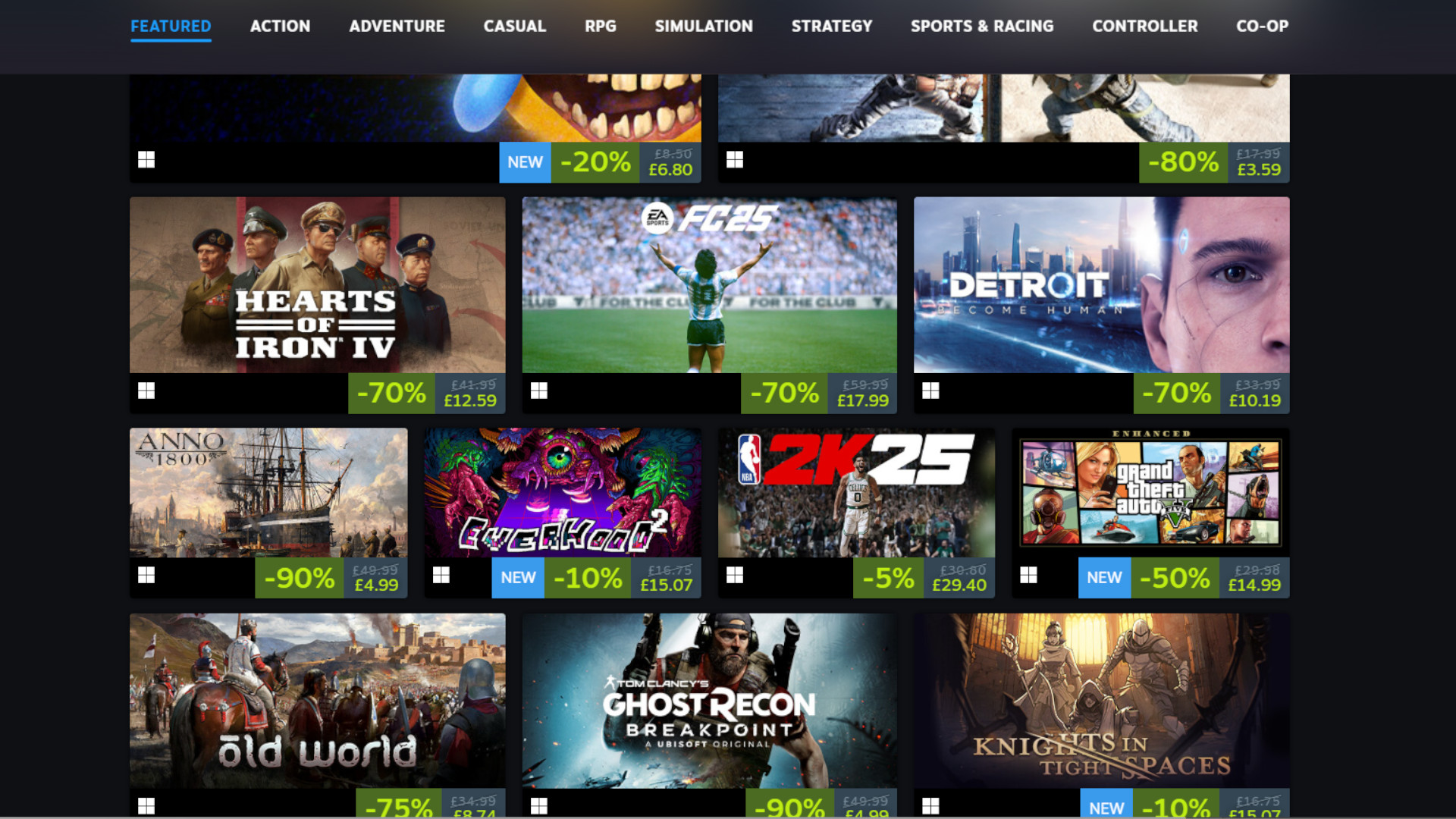


Steam Sale Dates 2026 When Is The Next Steam Sale. Ubisoft Tencent Launch Subsidiary Branch Vantage Studios To Take Over Ubisoft Tencent . Ubisoft Posts Strong First Half Growth And Teases Major Creative Shake 4631581 . Ubisoft Games To Use Player Facing AI After 6 .webp. Steam S Ubisoft Publisher Sale 2026 Offers Huge Games At Up To 90 Off 912cr476

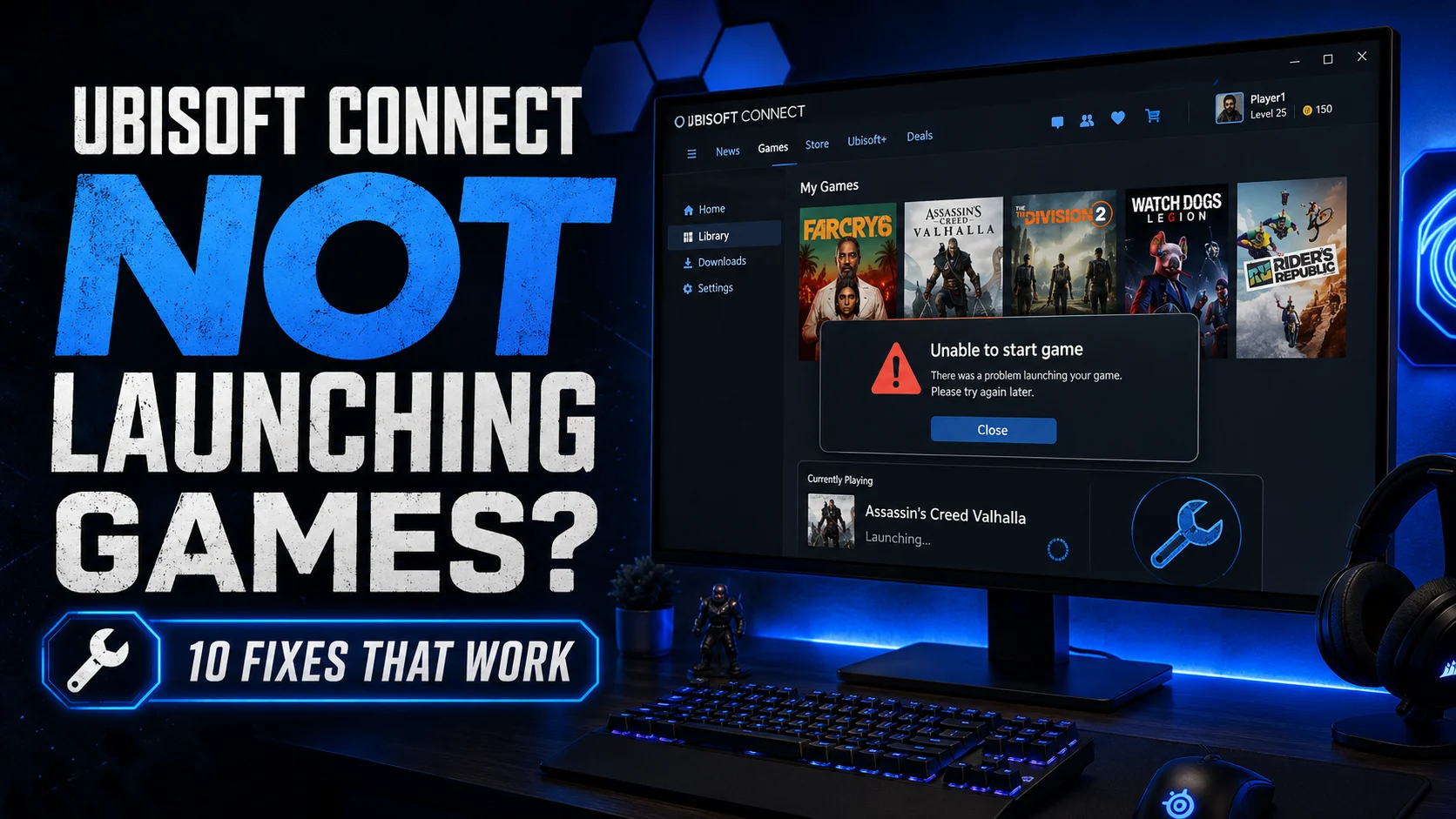
Ubisoft S Realignment Plan Unveiled As Shares Plunge AllKeyShop Com Ubisoft Strategic Plan For 2025 2026 Assassins Creed. Ubisoft Connect Not Launching Games 10 Fixes That Work On PC Ubisoft Not Launching Games.webp. Assassin S Creed Black Flag Resynced Breaks Steam Franchise Record With Ubisoft Says The Standard Edition Of Assassins Creed Black Flag Resynced Contains The Complete Game Despite Criticism Over Optional DLC. Image Via Ubisoft . Steam Update Hints At Ubisoft S Return To The Platform With New Game Steam Update Hints At Ubisofts Return To The Platform With New Game Releases . This 17 Open World Star Wars Game Is The Steam Summer Sale S Easiest Call Star Wars Outlaws Characters Sneaking